The practical way to turn spreadsheet into CRM on Mac is to separate contacts, companies, deals, and activities, then add follow-up fields, saved views, and review habits. A contact spreadsheet is fine until every row needs history, ownership, and a next action.
A Mac CRM is not a bigger contact list. It is a working system for knowing who someone is, what happened last, what should happen next, and when to act.
If your sheet already has names, emails, notes, and a few deal stages, keep that work. The conversion starts by giving each part of the sheet one job, then building views that turn static data into daily follow-up work. You do not need enterprise sales software for that first step.
What a spreadsheet CRM is
A spreadsheet CRM is a contact or sales workflow that still feels like a spreadsheet but behaves more like a lightweight database. It keeps familiar rows and columns, then adds structure around people, companies, opportunities, interactions, and follow-ups.
The spreadsheet part matters because it stays easy to scan and edit. The CRM part matters because each record has a clear role.
The plan should answer:
- Who is this person?
- What company or account do they belong to?
- What happened last?
- What should happen next?
- Which rows need attention today?
If those answers all live inside one Notes cell, the sheet is doing CRM work without CRM structure.
Why contact spreadsheets stop working
Most contact spreadsheets start with good intent: name, company, email, phone, notes, and maybe a status. They stop working when the same row has to represent a person, an account, a deal, and a history of every interaction.
That creates three common problems.
Notes become the system
The Notes column starts holding dates, promises, deal stages, objections, reminders, and personal context. It feels flexible, but it cannot reliably filter for "follow up this week" or "proposal sent with no reply."
Duplicate rows hide the truth
The same company appears five times because five contacts work there. The same contact appears twice because one row tracks the relationship and another row tracks a deal. After a few months, nobody knows which row is current.
Follow-ups depend on memory
A spreadsheet becomes risky when the next action is buried in free text. If the system cannot show what needs attention today, the spreadsheet is storing contacts but not managing relationships.
What to include in the CRM
Start by mapping the nouns in your current sheet. A simple CRM usually needs four parts.
| Table | What one row means | Typical fields |
|---|---|---|
| Contacts | One person | Name, email, role, company, relationship status, last contact, next action |
| Companies | One organization | Company name, website, industry, priority, account notes |
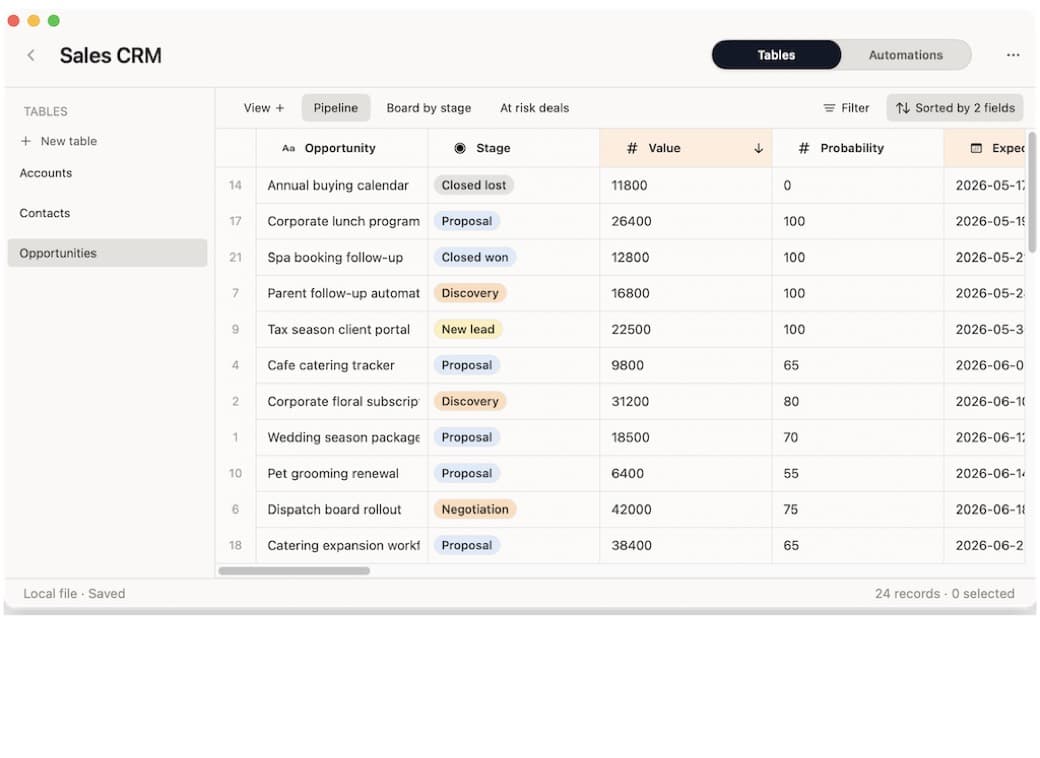
| Deals | One opportunity | Contact, company, value, stage, close date, next step |
| Activities | One interaction | Contact, date, channel, notes, follow-up date |
This split matters because one contact can have many activities. One company can have many contacts. One contact can also be attached to more than one deal over time.
A flat spreadsheet hides those relationships. A spreadsheet database or CRM makes them explicit.
Contacts
Use Contacts for people. Keep personal details, relationship status, last contact date, next action, and follow-up date here.
Best when: the row represents a person you may email, call, meet, refer, sell to, or follow up with.
Watch for: company-level details copied into every contact row.
Companies
Use Companies for organizations, clients, accounts, sponsors, vendors, agencies, or partners. Store website, industry, account notes, priority, and account owner here.
Best when: multiple contacts belong to the same organization.
Watch for: turning Companies into a second contact list.
Deals
Use Deals when there is a real opportunity to track. That could be a sale, proposal, sponsorship, partnership, contract, or paid project.
Best when: you need stage, value, close date, next step, and outcome.
Watch for: adding Deals before you have actual pipeline work.
Activities
Use Activities for the timeline: email, call, meeting, note, intro, demo, proposal, or follow-up.
Best when: you need to answer "what happened with this person over time?"
Watch for: stuffing every interaction into the contact row.
How to turn the spreadsheet into a CRM
Do the conversion in passes. Do not import the old sheet exactly as it is and call it finished.
Step 1: clean the existing columns
Before adding new structure, clean what you already have.
Use this pass:
- Rename columns in plain language:
Last contact,Next action,Follow-up date,Stage. - Remove columns nobody uses.
- Split mixed cells. Do not keep "Warm lead, email next week" in one field.
- Standardize status values before adding custom labels.
- Keep a raw notes field, but stop using it for dates, stages, and next steps.
Spreadsheet tools are useful here. Google Sheets supports dropdowns through data validation, and Excel can import or export CSV files when you need a clean handoff. Those mechanics help the cleanup, but they do not solve the CRM model by themselves.
Step 2: convert columns into fields
A CRM field should answer one clear question. If the answer changes your next action, make it a field.
| Field | Use it for | Good values |
|---|---|---|
| Relationship status | Current relationship state | New, warm, active, waiting, dormant |
| Lead source | Where the contact came from | Referral, inbound, event, outbound, existing client |
| Last contact | Last real interaction date | Date only |
| Next action | The next concrete step | Email, call, intro, proposal, no action |
| Follow-up date | When to review the contact | Date only |
| Deal stage | Sales opportunity stage | Qualified, proposal, negotiation, won, lost |
| Priority | How much attention the row needs | Low, medium, high |
Avoid fields that look tidy but do not change behavior. "Notes quality" or "Relationship score" may sound useful, but they often become empty columns. Start with fields that drive views and follow-ups.
Step 3: add linked records
Copied names are the first sign that a spreadsheet is becoming fragile.
If a company has three contacts, do not copy the same company address, website, industry, and account note into every contact row. Put company-level details in a Companies table, then link contacts to that company.
Use the same pattern for activities. Instead of adding five "last call" columns to the contact row, create an Activities table where each row is one email, call, meeting, note, or follow-up.
That gives you a cleaner answer to a common CRM question: "What happened with this person over time?"
Step 4: build views for review habits
A CRM becomes useful when views tell you what to do.
| View | Filter | Use it for |
|---|---|---|
| Follow up today | Follow-up date is today or earlier, status is not closed | Daily outreach |
| Warm leads | Status is warm, next action is not empty | Relationship building |
| Active deals | Deal stage is not won or lost | Pipeline review |
| Waiting on reply | Next action is waiting, last contact is recent | Avoiding duplicate nudges |
| Stale contacts | Last contact is older than your threshold | Weekly cleanup |
| No next action | Next action is empty, status is active or warm | Fixing CRM holes |
Do not make a separate sheet for each view if it creates copied data. Separate tabs are fine for simple analysis, but duplicate working tabs drift apart. A saved view should show the same records through a different filter.
Step 5: add actions near the row
The next level is making the CRM help with repeated work.
Useful row actions include:
- Draft a follow-up email from the contact, context, and next action.
- Create a next task after a call.
- Move a deal to the next stage.
- Summarize the last few activity notes.
- Mark a contact dormant when there is no next step.
Keep actions narrow. "Manage relationship" is too vague. "Draft follow-up from last activity note" is specific enough to trust.
Step 6: review it every week
Most lightweight CRMs fail because nobody reviews them.
Use a short weekly pass:
- Open Follow up today.
- Clear or update every overdue next action.
- Check active deals for missing next steps.
- Move cold rows to dormant instead of leaving them in limbo.
- Add activities for conversations that happened outside the CRM.
- Archive fields and views that no longer help decisions.
This is the difference between a CRM and a prettier spreadsheet. The tool stores the structure, but the review habit keeps it honest.
Example CRM setup
Here is a practical starter schema for a solo consultant, freelancer, founder, recruiter, or Mac-based operator.
| Table | Core fields | Views | Actions |
|---|---|---|---|
| Contacts | Name, email, role, company, status, last contact, next action, follow-up date | Follow up today, warm leads, dormant contacts | Draft follow-up, create activity |
| Companies | Company, website, industry, priority, account notes | Priority accounts, by industry | Open account review |
| Deals | Contact, company, value, stage, close date, next step | Active deals, closing soon, stuck deals | Update stage, create next task |
| Activities | Contact, company, date, channel, notes, follow-up date | Recent activity, follow-ups created | Summarize notes |
Start with Contacts and Activities if your spreadsheet is mostly relationship tracking. Add Companies when account details repeat. Add Deals only when you truly track opportunities, proposals, sales, sponsorships, partnerships, or paid projects.
Common mistakes to avoid
The first mistake is importing the old spreadsheet exactly as it is. That preserves the mess.
The second mistake is creating too many statuses. Ten stages look precise, but most small CRMs need fewer labels and better review habits.
The third mistake is treating every note as a field. A field should sort, filter, link, calculate, or trigger action. If it does none of those, it may belong in notes.
The fourth mistake is buying a full CRM before the workflow is clear. HubSpot, Salesforce, Pipedrive, and other CRMs are useful when the sales process needs shared reporting, automation, lead routing, and team controls. They are heavier than needed when one person is trying to stop losing follow-ups.
How Macrows fits
Macrows fits when the spreadsheet is still the right starting point, but the workflow now needs structure. A relationship tracker can begin as a familiar grid, then grow into linked tables, saved views, formulas, buttons, and row actions when the extra structure earns its place.
For a CRM workflow, Macrows is a good fit when you want to:
- Keep a private contact system on your Mac.
- Import or rebuild a spreadsheet as a structured CRM.
- Link contacts, companies, deals, and activities.
- Save views for follow-ups, active deals, and stale relationships.
- Keep repeated actions near the row instead of managing them in a separate app.
For a dedicated CRM setup, read Personal CRM for Mac. For the broader category, read Spreadsheet Database for Mac and Database App for Mac.
When Macrows is not the right fit
Use HubSpot, Salesforce, Pipedrive, or another full CRM when the workflow needs team sales reporting, lead assignment, marketing sequences, call logging, forecasting, permissions, or deep integrations.
Use Airtable when the CRM should be a shared browser-first workspace with interfaces, forms, and team collaboration from day one. Airtable's template gallery includes sales and CRM templates if the workflow belongs in a cloud base.
Use Google Sheets or Excel when the list is still simple. A normal spreadsheet is enough for a small contact list with no linked history, no follow-up process, and no daily review habit.
Conversion checklist
- Pick the one spreadsheet that currently loses the most follow-ups.
- Duplicate it before editing.
- Mark each current column as contact, company, deal, activity, or discard.
- Standardize status, source, stage, and priority values.
- Create a follow-up date and next action field.
- Add a separate Activities table for interaction history.
- Build a Follow up today view before adding dashboards.
- Review the CRM weekly for one month before adding more complexity.
What to try in Macrows
If your contact sheet already feels like a private work system, join the Macrows waiting list and build the CRM version on your Mac. Start with Contacts and Activities, add saved views for follow-ups, then connect companies and deals only when the extra structure earns its keep.
Use this simple Mac CRM migration path:
- Import the contact spreadsheet.
- Make follow-up date, next action, status, and source real fields.
- Save a Follow up today view.
- Add an Activities table when notes stop fitting cleanly in one row.
- Link Companies and Deals only after the contact workflow is reliable.
FAQ
Can you turn a spreadsheet into a CRM?
Yes, you can turn a spreadsheet into a CRM by adding clear entities, fields, linked records, follow-up views, and review habits. The spreadsheet becomes a CRM when it helps you decide what to do next, not only store contact details.
What fields should a spreadsheet CRM include?
A spreadsheet CRM should include contact name, company, email, status, source, last contact, next action, follow-up date, and notes. Add deals, activities, and company fields when the relationship history becomes too much for one row.
Is Google Sheets enough for a CRM?
Google Sheets is enough for a small contact list or early sales tracker. Move to a spreadsheet database or CRM when you need linked contacts, company records, activity history, saved views, and reliable follow-up work.
When should I move from a spreadsheet CRM to full CRM software?
Move to full CRM software when a team needs shared sales reporting, permissions, assignment, email sequences, forecasting, call logging, or mature integrations. Stay with a spreadsheet database when the workflow is private, lightweight, and mostly about keeping relationships organized.
Is Macrows good for a spreadsheet CRM on Mac?
Yes, Macrows is a good fit for a spreadsheet CRM on Mac when you want a private grid with real fields, linked records, saved views, and row actions. It also works as a lightweight Mac CRM for personal relationships, clients, deals, and follow-ups. Use a full CRM when sales operations, team permissions, or pipeline reporting are the main job.