The practical meaning of Describe a Shortcut is simple: Apple is moving Shortcuts from manual workflow assembly toward plain-language automation. At WWDC 2026, Apple said Shortcuts can take a user's description, assemble the required steps, and adjust the workflow when the user describes a change.
For Macrows users, the useful signal is bigger than one Shortcuts feature. Everyday automation is moving away from "learn every tool first" and toward "describe the workflow, then keep the result somewhere structured."
The question for Mac users is not whether the first generated workflow is perfect. It is where the useful output should live after review.
What Apple announced at WWDC 2026
Apple announced Describe a Shortcut as part of its June 8, 2026 Apple Intelligence update. The feature is meant to make Shortcuts more approachable by letting people describe what they want done instead of assembling every step by hand.
Apple gave examples such as setting a morning alarm based on the next day's first Calendar event, opening work apps with a specific window arrangement when an iPad connects to a Magic Keyboard, or turning on porch lights when a food delivery notification arrives.
That matters because Shortcuts has always been powerful, but not always easy to start. Apple's Shortcuts User Guide describes an action as the building block of a shortcut, and a shortcut as one or more actions working together. That model is still there. The change is that the user no longer has to begin by knowing the exact action list.
The release timing also matters. Apple says the new Apple Intelligence features are available for developer testing starting June 8, 2026, with a public beta in July 2026 and user availability in fall 2026 for supported devices, operating systems, languages, and regions.
Why this is bigger than Shortcuts
Describe a Shortcut is a useful signal about where no-code automation is going. Users do not want to think in builders, panels, variables, menus, and trigger setup before they get value. They want to say what should happen.
That does not make old automation useless. Rules, triggers, actions, and testing still matter. The change is the starting point.
Old automation starts with the tool's structure. New automation starts with the desired outcome.
| Automation model | User has to think about | Good for | Weak point |
|---|---|---|---|
| Manual builder | Trigger, action list, variables, app permissions, order, edge cases | Precise workflows that need careful control | Hard for non-technical users to start |
| Rule-based setup | If this happens, then do that | Simple recurring conditions | Gets brittle when inputs are messy |
| Script or code | Data shape, syntax, APIs, errors, runtime | Deep control and custom logic | Too much work for many everyday jobs |
| Describe-first automation | Outcome, inputs, review, correction | Turning intent into a first working workflow | Still needs testing, structure, and guardrails |
The useful shift is not that users never inspect the workflow. The useful shift is that a blank automation builder becomes a conversation about the job.
Old automation had too much setup
Most business automation fails before it begins because setup feels heavier than the work itself. A person might want a simple result: save a lead from a web page, summarize a PDF, mark a vendor price change, or draft a client follow-up.
In old automation, that person had to translate the goal into tool steps:
- Pick the trigger.
- Find the right app action.
- Pass the right input.
- Choose where the output goes.
- Handle missing data.
- Test the workflow.
- Keep fixing it when the input changes.
For power users, that is acceptable. For normal operational work, it is often too much ceremony. The person goes back to copying, pasting, and leaving notes in screenshots, tabs, emails, and spreadsheets.
Describe a Shortcut points at the missing layer: people should be able to describe the work in their own words first, then review what the system built.
New automation starts with the outcome
A better automation prompt is not just "make a shortcut." It names the input, the result, the condition, and the place where the output belongs.
For example:
| Weak description | Better description |
|---|---|
| "Track my clients." | "When I copy a client email, extract the client name, project, deadline, and next action, then add them to my client follow-up table." |
| "Summarize this PDF." | "Read this supplier PDF, pull out product names, prices, lead times, and terms, then mark rows that need review." |
| "Help with research." | "From this Safari page, save the title, URL, company name, pricing claim, and date checked." |
| "Make my morning easier." | "Before my first calendar event, open the files and apps I need, then show the tasks due today." |
This is the shape Mac users should expect from no-code automation going forward. The user describes the job. The system proposes the workflow. The user checks the steps and the result.
The important part is the destination. If the output disappears into a notification, chat, or one-time answer, it may help for a moment. If it becomes a record with fields, status, source, date, and next action, it becomes part of the work.
The Macrows angle: messy inputs need structure
Macrows users often deal with inputs that do not arrive as clean tables. The work starts in emails, files, web pages, PDFs, screenshots, clipboard data, forms, CSV exports, notes, and browser tabs.
That is why Describe a Shortcut is relevant to Macrows. The new automation pattern is not only about turning on lights or sending an ETA. It is about lowering the cost of turning messy work into repeatable steps.
| Messy input | Described workflow | Useful Macrows record |
|---|---|---|
| Client email | Extract request, deadline, owner, and reply status. | Client, project, request, due date, next action. |
| Supplier PDF | Pull out product, price, stock note, and terms. | Product, vendor, price, source file, review status. |
| Safari page | Save source URL, claim, company, and date checked. | Source, URL, topic, evidence, confidence. |
| Screenshot | Identify visible task, contact, or issue and create a follow-up. | Record, type, owner, status, screenshot reference. |
| Clipboard list | Split pasted text into clean names, categories, and notes. | Records with fields instead of one loose text blob. |
The Macrows lesson is simple: natural-language automation is most valuable when the output lands in a durable table. A described workflow can gather and transform the input. A structured Mac table keeps the work searchable, filterable, linked, and ready for follow-up.
Where Safari extensions fit
Apple's same June 2026 release also points to a browser version of the same idea. Apple says Safari can create a custom extension when users describe what they want, such as adding a button to save and rate recipes they have tried.
That is part of the same trend. Safari extensions are moving from installed browser utilities toward described browser helpers. Shortcuts are moving from manual action chains toward described workflows.
This article is about the Shortcuts side of that trend. The Safari extension article covers browser capture, page helpers, and extension safety in more detail.
For Macrows users, the split should stay clear:
- Use Safari extensions for browser-side capture, page changes, clipping, and page-specific helpers.
- Use Shortcuts for device and app workflows that can run from a described intent.
- Use Macrows when the result should become records, fields, saved views, linked context, and row actions.
For a browser-first workflow, read Safari Extensions: What Changed and What Mac Users Should Do. For the structured table side, read Spreadsheet Database for Mac.
How Macrows fits
Macrows is a private spreadsheet database for Mac. It is a good fit when described automation produces information you need to keep working with after the first answer.
Use Macrows when you want to turn described workflows into:
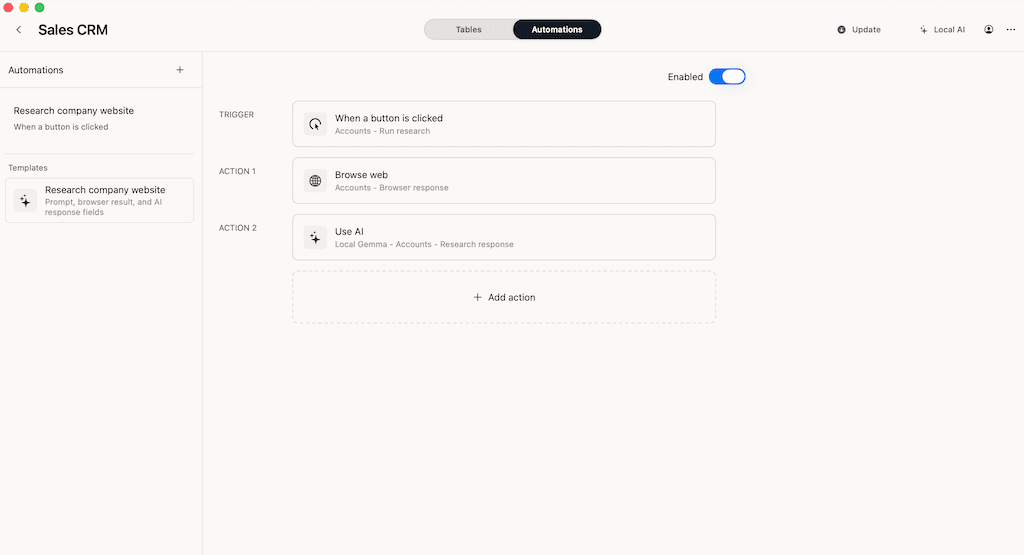
- A lead table from company pages, emails, and clipboard data.
- A client follow-up table from messages, notes, calls, and PDFs.
- A research database with source URLs, claims, evidence, tags, and status.
- A content calendar with sources, drafts, publish dates, owners, and approvals.
- An inventory tracker with vendors, product notes, stock status, and reorder actions.
The point is not that Macrows replaces Shortcuts. Shortcuts can run useful actions across Apple devices and apps. Macrows keeps operational work in one private Mac table where records can be sorted, filtered, linked, updated, and acted on later.
If you already collect work in screenshots, tabs, clipboard scraps, and loose spreadsheets, download Macrows and start with one table: source, summary, status, owner, next action, and date checked.
When Macrows is not the best fit
Use Shortcuts directly when the workflow is a device action and the result does not need a database. Sending an ETA, setting an alarm, opening apps, changing lights, or creating a one-time reminder can stay in Shortcuts.
Use Calendar, Reminders, Mail, Messages, or Notes when the record belongs in that app and does not need a separate operating table.
Use Airtable, Google Sheets, or another shared cloud tool when many people need live collaboration, permissions, forms, dashboards, or shared automation today.
Macrows is strongest when the first copy of the work should stay private on your Mac and the output needs structure. It is not the right place for every automation.
A practical workflow for Mac users
Use Describe a Shortcut as the starting point, not the whole system.
- Describe the exact input: email, PDF, Safari page, screenshot, clipboard text, file, or calendar event.
- Describe the desired output: fields, summary, status, reminder, message, or record.
- Ask the tool to build the first version.
- Inspect the steps before trusting it.
- Run it on a small example.
- Save durable outputs into a table.
- Add fields for source, date checked, owner, confidence, and next action.
- Turn repeated work into a row action only after the pattern is clear.
That last step prevents automation clutter. A workflow should earn its place by repeating. If it happens once, a quick Shortcut may be enough. If it happens every week across many records, it belongs beside the table where the work lives.
FAQ
What is Describe a Shortcut?
Describe a Shortcut is Apple's WWDC 2026 Shortcuts feature that lets a user describe an automation in plain language so Apple Intelligence can assemble the required steps.
How does Apple's natural-language automation work?
Apple has not published every final user-flow detail yet, but its announcement says Shortcuts can take a user's description, build the workflow steps, and make adjustments when the user describes a change.
Is Describe a Shortcut available now?
Apple says the new Apple Intelligence features are available for developer testing starting June 8, 2026, with public beta access in July 2026 and user availability in fall 2026 on supported devices and languages.
Does this replace manual Shortcuts building?
No. It changes the starting point. Manual review, testing, permissions, and correction still matter, especially when a shortcut touches messages, files, calendars, web pages, or app data.
What should Macrows users do with Describe a Shortcut?
Use it to turn messy inputs into repeatable steps, then save durable outputs in Macrows when the result needs records, fields, saved views, linked context, and follow-up.
Are Safari extensions part of the same trend?
Yes. Apple's June 2026 release also says users can describe a custom Safari extension. That points to the same shift: describe the browser or workflow behavior you want, then inspect what the system creates.