The practical way to turn spreadsheet into project tracker is to keep the useful project rows but stop using one flat sheet for every deadline, owner, status, risk, and handoff. Rebuild the tracker around projects, tasks, milestones, risks, and people, then use saved views to show what needs attention this week.
Use the spreadsheet as the source material, not the finished system. This guide gives you a conversion map, starter CSV, example review graph, and weekly process for turning an existing project sheet into a tracker you can actually run from. Start with one active project, prove the review habit, then expand the structure.
What a project tracker spreadsheet should become
A project tracker spreadsheet should become a working table system for decisions, not a larger task list. Each row needs one clear meaning, each status needs controlled values, and each view should answer a question you ask during planning or review.
Here is the conversion map to use before adding more columns.
| Old spreadsheet pattern | Better tracker structure | Why it helps |
|---|---|---|
| One row mixes project, task, owner, and notes | Separate projects and tasks | Projects stay stable while tasks change. |
| Status values are typed by hand | Controlled status field | Filtering and review views stop drifting. |
| Deadlines sit beside long notes | Date fields for due date and milestone date | Overdue and upcoming work becomes visible. |
| Risks are buried in comments | Risk table or risk fields | Blockers get owners and review dates. |
| Duplicate tabs show "my tasks" or "this week" | Saved views | The same records can be reviewed from different angles. |
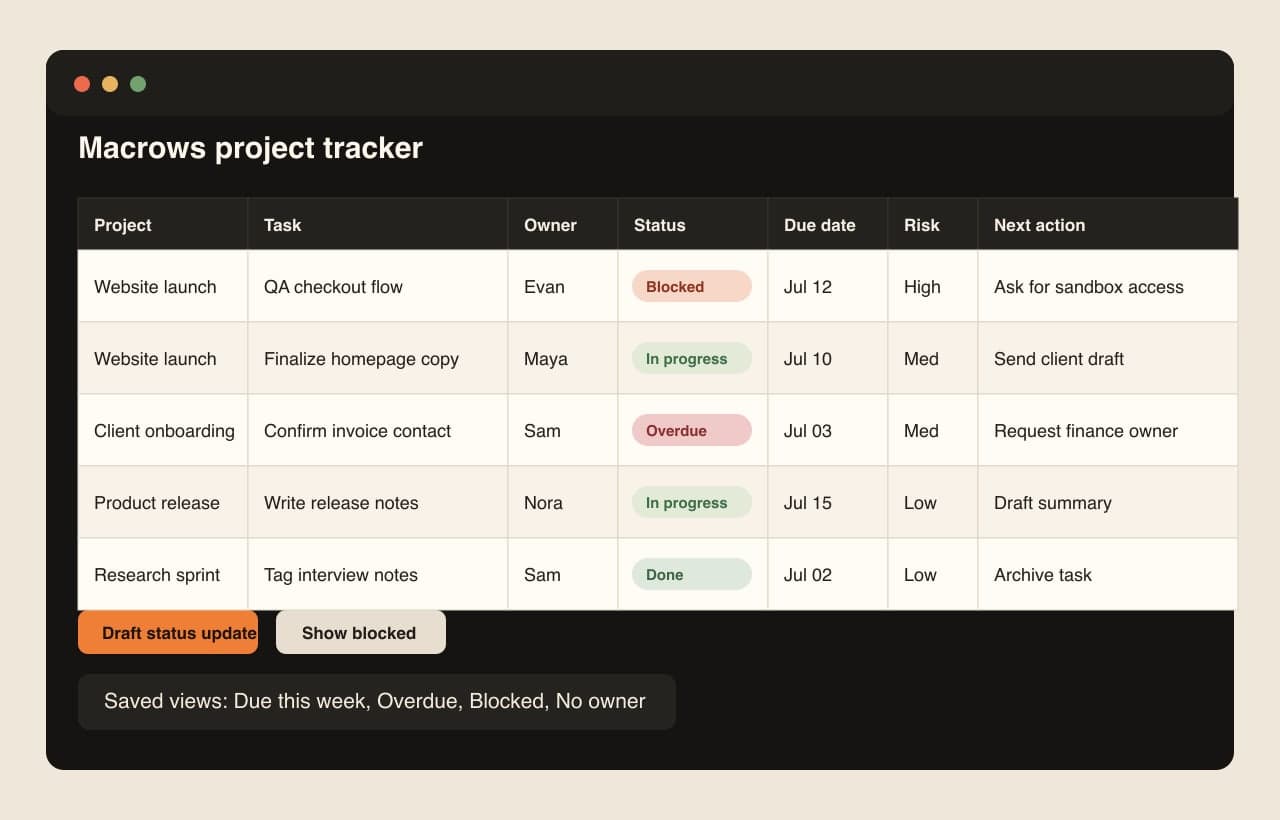
Why project spreadsheets fail
Project spreadsheets usually fail after they become the only place where work status lives. A simple task list can survive with columns for task, owner, due date, and status. A live project tracker has to handle scope, milestones, blockers, review dates, status updates, handoffs, and recurring follow-up.
Project tracker templates usually center on the same ingredients. Microsoft describes Excel project tracker templates around milestones, deadlines, status, owners, dashboards, and roadblocks (Microsoft Excel project tracker templates). The failure happens when the same flat sheet also has to behave like a database, task board, handoff log, and weekly review system.
Status stops meaning one thing
When a spreadsheet has Done, done, Complete, completed, Waiting, and Waiting on client, the status column looks usable but filters badly. Choose a small set of status values before importing the sheet into a tracker.
Owners become copied text
Owner names should be easy to filter, group, and review. If the same person appears as Sam, Samuel, and Sam R., workload views stop being reliable.
Risks hide in notes
Notes are useful for context. They are bad places to store blockers, dependencies, and next actions. If a blocked task has no blocker owner or review date, it will sit quietly until the deadline is already missed.
Duplicate tabs become parallel systems
Separate tabs for This week, Client waiting, and Overdue can help at first. They become risky when people copy rows into them. Google Sheets supports named filter views for saving and switching filters without changing the underlying data (Google Sheets filter views). A project tracker should use the same principle: one source of truth, several working views.
What to define before you convert the sheet
Start by naming the things the tracker manages. Do this before adding formulas, automations, or row actions.
Projects
A project row represents the larger outcome: website launch, client onboarding, hiring round, content campaign, product release, or renovation phase.
Use it for: client, owner, start date, target date, status, budget band, health, and summary.
Watch for: turning each task into a project. If a row can be finished in one sitting, it probably belongs in Tasks.
Tasks
A task row represents one piece of work with an owner and a due date. It should be specific enough that someone can act on it without reading five other cells.
Use it for: task name, project link, owner, status, due date, priority, blocker, next action, and update note.
Watch for: tasks that contain many hidden subtasks. Split them when the owner, status, or deadline differs.
Milestones
A milestone row represents a checkpoint or deliverable that changes the project state. It is not every task. It is the thing stakeholders care about seeing on a timeline.
Use it for: milestone name, project link, target date, acceptance notes, status, and decision needed.
Watch for: using milestones as decoration. A milestone should change planning, reporting, or handoff behavior.
Risks
A risk row represents something that could delay, damage, or change the project. Risks deserve owners because they are not the same as notes.
Use it for: risk, project link, severity, owner, mitigation, review date, and current state.
Watch for: risk fields that nobody reviews. If a risk has no review habit, it is only a label.
People
A person row represents someone who owns work, reviews deliverables, receives handoffs, or blocks progress.
Use it for: name, role, email, organization, workload notes, and default project role.
Watch for: rebuilding a full HR directory. Keep this table focused on project work.
How to turn the spreadsheet into a project tracker
Convert the sheet in passes. Do not import the old workbook exactly as-is and then add prettier formatting.
Step 1: freeze the old sheet
Save a copy of the current spreadsheet before changing structure. Keep raw columns long enough to audit the conversion.
Rename unclear columns before import. Notes 2, Misc, Current, and Who should become plain fields such as Update note, Blocker, Status, and Owner.
Step 2: split mixed columns
Any cell that holds more than one decision should become separate fields. Split In progress - waiting on client - send draft Friday into status, blocker, next action, and due date.
This is where simple spreadsheet cleanup still helps. Microsoft says Excel project trackers commonly use custom fields, drop-downs, sorting, charts, and deadline tracking (Microsoft Excel project management). Use those tools to clean the sheet. Then move the working system into a structure that can hold relationships and views.
Step 3: standardize status and priority
Use fewer statuses than you think you need. A practical starter set is:
| Field | Starter values |
|---|---|
| Status | Not started, In progress, Waiting, Blocked, Review, Done |
| Priority | Low, Medium, High |
| Risk level | Low, Medium, High |
| Handoff state | Not needed, Needed, Sent, Accepted |
Avoid clever labels that only one person understands. Status values should make sense months later.
Step 4: link tasks to projects
If the old sheet repeats project names across task rows, create a Projects table and link tasks to it. The project holds overall status, owner, target date, and health. The task holds current work.
This prevents the same project deadline, client name, or risk summary from being copied across twenty rows.
Step 5: build saved views before actions
Views should match review habits. Start with five:
| View | Filter | Use it for |
|---|---|---|
| Due this week | Due date is within 7 days and status is not Done | Planning the week. |
| Overdue | Due date is before today and status is not Done | Recovery. |
| Blocked | Status is Blocked or blocker is not empty | Unblocking work. |
| Waiting on handoff | Handoff state is Needed or Sent | Client and teammate follow-up. |
| No owner | Owner is empty and status is not Done | Fixing tracker gaps. |
Do not create a saved view unless it changes what you do. A view should drive a meeting, check-in, handoff, or cleanup pass.
Step 6: add row actions only where the manual step repeats
Row actions belong next to rows that need repeated work. Add them after the tracker fields are stable.
Good first actions:
- Draft status update from project, task, owner, blocker, and next action.
- Create handoff note for the owner and reviewer.
- Mark waiting and request the missing input.
- Summarize recent updates before a review.
- Create follow-up task after a milestone review.
Keep each action narrow. A button called Prepare handoff note is easier to trust than one called Manage project.
Step 7: review the tracker every week
A project tracker works only when it has a review loop. Use the views in the same order each week:
- Open Overdue and either close, move, or reassign every item.
- Open Due this week and confirm owners.
- Open Blocked and add a blocker owner or mitigation.
- Open Waiting on handoff and send the next note.
- Open No owner and fill the gaps before they become invisible.
- Archive completed records so the active views stay readable.
Example review queue after conversion
The first review usually shows where the old spreadsheet was hiding work. In this fictional 42-task launch tracker, the conversion exposed 9 blocked tasks, 8 waiting handoffs, 7 overdue tasks, and 4 tasks with no owner.
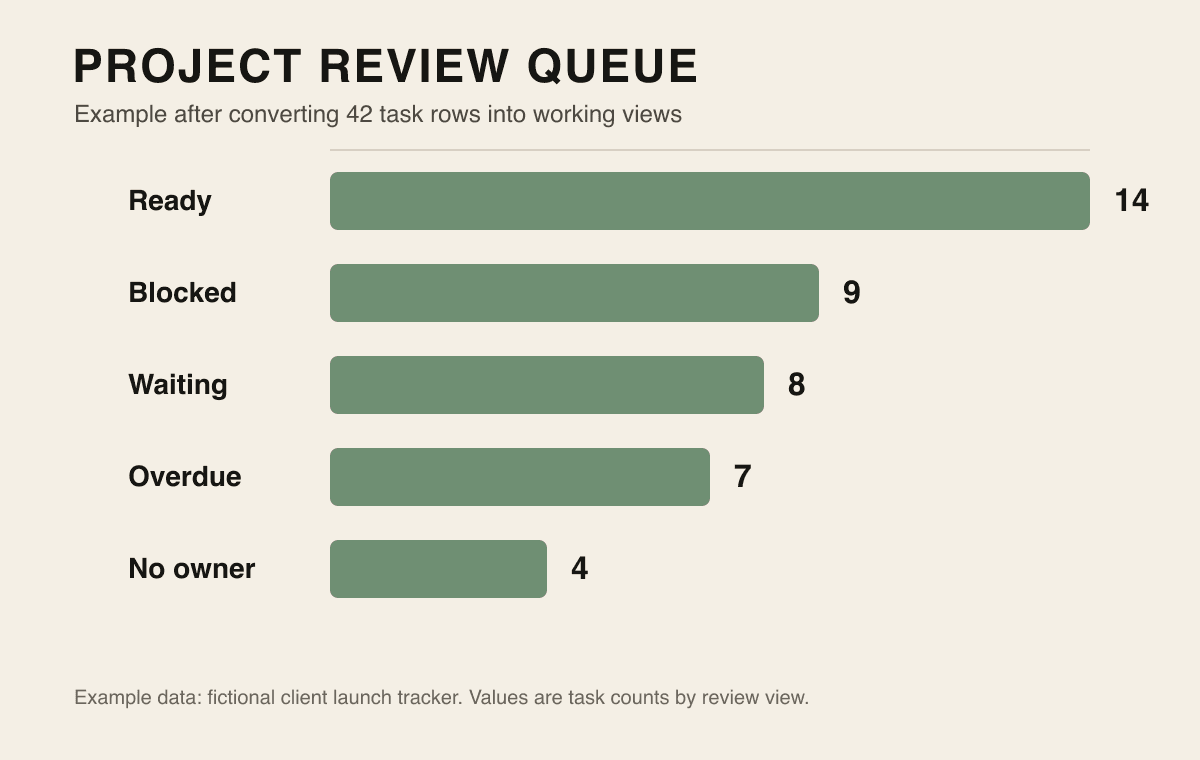
The exact numbers do not matter. The useful signal is the shape of the queue. If blocked, waiting, overdue, and no-owner records appear immediately after cleanup, the old spreadsheet was storing project risk without making it reviewable.
Starter project tracker structure
Use this starter structure when you need a practical baseline.
| Table | Core fields | Working views | Useful row actions |
|---|---|---|---|
| Projects | Project, client, owner, status, health, start date, target date | Active projects, At risk, Closing soon | Draft status update |
| Tasks | Task, project, owner, status, priority, due date, blocker, next action | Due this week, Overdue, Blocked, No owner | Create handoff note |
| Milestones | Milestone, project, target date, status, decision needed | Upcoming milestones, Waiting on approval | Prepare review note |
| Risks | Risk, project, severity, owner, mitigation, review date | High severity, Review this week | Draft mitigation update |
| People | Name, role, email, organization, workload note | By owner, External reviewers | Create follow-up |
Download the starter CSV, then replace the fictional rows with your own project work.
Common mistakes to avoid
The first mistake is keeping every old column. A conversion is the right time to remove columns nobody trusts.
The second mistake is creating too many statuses. More labels usually make the tracker harder to run, not more accurate.
The third mistake is building actions before fields are stable. Automating a messy tracker makes messy work faster.
The fourth mistake is using the tracker for team behavior it cannot enforce. A private project tracker can clarify owners and follow-ups. It will not replace a team's shared task app, comments, notifications, or portfolio reporting.
How Macrows fits
Macrows fits when your project spreadsheet still belongs on your Mac, but the work now needs structure. It is a private spreadsheet database for Mac, so you can keep the grid, add fields and saved views, link records, and put narrow row actions next to the project work.
Use Macrows when you want to:
- Rebuild a project spreadsheet without turning it into a browser-first workspace.
- Track projects, tasks, milestones, risks, and people from a familiar grid.
- Use fields, dates, selects, linked records, formulas, saved views, buttons, and row actions.
- Keep local projects free while deciding which workflows need sharing later. The current Macrows pricing page says local use is free and Pro is for sharing.
For the finished use-case setup, read Project Tracker for Mac. For the broader category, read Spreadsheet Database for Mac. For cloud app-builder tradeoffs, read Airtable Alternative for Mac.
When Macrows is not the right fit
Use a dedicated project management app when the project lives in a shared team workspace every day. Asana documents custom fields, CSV import, recurring tasks, and project task management for team workflows (Asana features). Trello is a better fit when the work is a shared board of cards and lists (Trello board basics).
Use Airtable when the tracker needs browser-first collaboration, forms, interfaces, automations, and shared base permissions. Airtable's project-tracker guide frames project tracking around templates, visualizations, automations, dashboards, and team software (Airtable project tracker guide).
Use Excel or Google Sheets when the work is still a simple list, calculation model, timeline, or shared spreadsheet. Do not move to a project database just because the sheet feels untidy. Move when the work needs durable records, linked context, saved views, and a weekly review process.
Conversion checklist
Use this checklist before you treat the project tracker as live.
- One row has one meaning.
- Status values are controlled and short.
- Every active task has one owner.
- Due dates and milestone dates are real date fields.
- Blockers have owners or next actions.
- Views match weekly review questions.
- No copied tab is pretending to be a saved view.
- Row actions are narrow and tied to repeated work.
- Completed records can be archived without breaking active views.
FAQ
Can you turn a spreadsheet into a project tracker?
Yes. Start by cleaning the current columns, then split the sheet into projects, tasks, milestones, risks, and people. Add controlled statuses, owners, due dates, saved views, and a weekly review habit before adding row actions.
What fields should a project tracker spreadsheet include?
A project tracker spreadsheet should include project, task, owner, status, priority, due date, blocker, next action, milestone, risk level, and review date fields. Add more only when the field changes a view, handoff, report, or decision.
Is Google Sheets enough for project tracking?
Google Sheets is enough for simple shared project lists, timelines, and lightweight reporting. Move to a spreadsheet database when copied tabs, inconsistent statuses, repeated project names, blockers, and handoffs make the sheet hard to trust.
How is a project tracker different from a task list?
A task list stores work items. A project tracker also stores project context: milestones, owners, deadlines, risks, blockers, review dates, handoffs, and status updates.
When should I use a project management app instead?
Use a project management app when the team needs comments, assignments, notifications, workload planning, time tracking, or portfolio reporting. A spreadsheet database is better when the project data itself is the workflow.
Is Macrows good for project tracker spreadsheets on Mac?
Macrows is a good fit when a project tracker should stay Mac-native and spreadsheet-like but needs fields, linked records, saved views, formulas, buttons, and row actions. Use the starter CSV to convert one project first, then add more structure only where the workflow earns it.