When copied tabs are becoming parallel versions of the same records, spreadsheet saved views are the safer fix. Use saved views instead of separate sheets when the same records need different working angles, such as Pipeline, Due this week, Low stock, or Follow up today.
Keep separate sheets for genuinely different data. Use saved views when the data is the same but the question changes. The practical rule is to separate record types, then save views for review habits. This guide gives you the split test, example view sets, a duplicate-tab graph, and a naming checklist for turning copied tabs back into one reliable table.
What spreadsheet saved views mean
A saved view is a named way to look at the same records. It can filter rows, sort by useful fields, hide columns, reorder fields, or keep a view focused on one job.
The important detail is that a view is not a second copy of the data. Airtable describes views as different ways to look at and organize data in a table, with a table able to have multiple views and view types: Airtable views overview. Google Sheets makes the same split for filter views: filters change what you see, not the values in the spreadsheet, and filter views let you save named filters: Google Sheets filter views.
That is the job this article cares about. A saved view should answer one working question without creating another copy to maintain.
Separate sheets vs saved views
The split is simple: use a separate sheet when the rows mean something different; use a saved view when the rows are the same records under different conditions.
| Situation | Use a separate sheet when | Use a saved view when |
|---|---|---|
| CRM follow-ups | Contacts, Companies, Deals, and Activities are separate record types | Follow up today, Warm leads, and Quiet contacts are filtered angles on Contacts |
| Project tracking | Projects, Tasks, Milestones, Risks, and People have different fields | Overdue, Blocked, Due this week, and No owner are review views on Tasks |
| Inventory | Products, Vendors, Locations, and Stock movements are different records | Low stock, Reorder needed, By vendor, and Discontinued are views on Products |
| Content planning | Campaigns, Content items, Assets, and Approvals need separate tables | Drafts due, Waiting approval, Missing assets, and Publishing this week are views on Content items |
Separate sheets are still useful. A company table should not be the same sheet as a contact table. A stock movement log should not be the same sheet as a product catalog.
The mistake is creating This week, Urgent, Done, Client A, or My tasks as copied tabs when those are really filters on the same record set.
When duplicated tabs create bad data
Copied tabs feel harmless because they make a filtered list easy to see. The cost appears later, when a row is edited in one tab but not in the source tab.
In this example project tracker, the source table has 48 task records. A separate-tab workflow copies 12 due-this-week tasks, 9 blocked tasks, and 8 waiting tasks into three review tabs. That creates 29 copied rows to keep in sync. Saved views show the same review queues with zero copied rows.
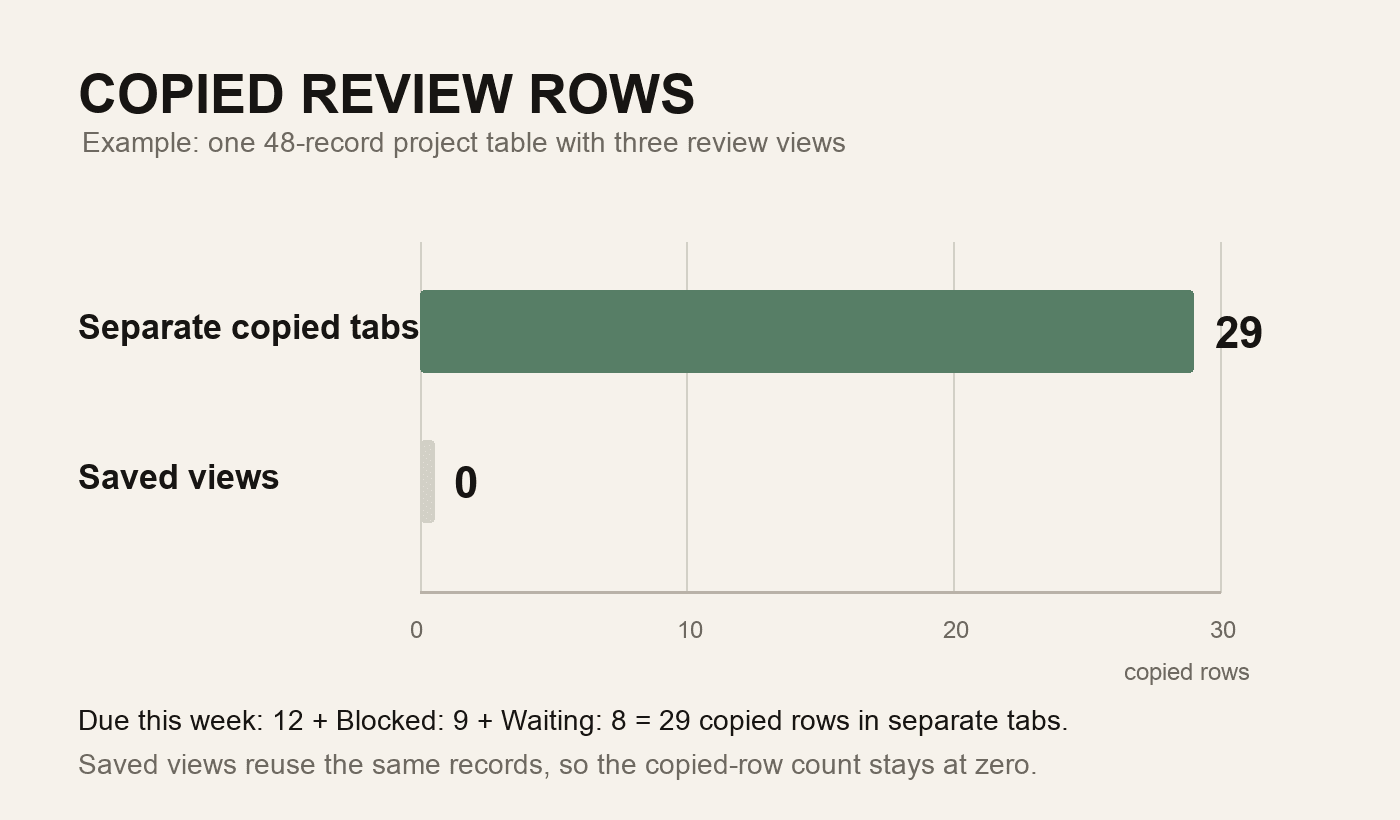
The lesson is not that every copied tab is wrong. It is that copied review tabs become parallel systems. If a blocked task is marked done in the Blocked tab but not in the main table, the tracker now has two truths.
How to design saved views
Design views around repeated review habits. A good view changes what you do next.
Start with one source table
Choose the table that owns the records. For a CRM, that may be Contacts or Deals. For projects, it may be Tasks. For inventory, it may be Products.
Do not start by creating ten views. Start with one table and one recurring question: what needs follow-up, what is late, what is blocked, what needs reorder, or what is missing an owner?
Filter by fields that stay consistent
Saved views are only as good as the fields behind them. A view called Blocked needs a reliable Status or Blocker field. A view called Follow up today needs a date field. A view called By vendor needs the vendor stored consistently.
If the field values are typed freely, clean them first. Saved views cannot fix Done, done, Complete, and completed all meaning the same thing.
Sort by the next decision
Sort views by the field that changes the next action. For follow-ups, sort by follow-up date. For blocked tasks, sort by risk level or review date. For inventory, sort low-stock records by reorder date or current stock.
Microsoft's Excel Custom Views feature can save display settings such as hidden rows, columns, filter settings, and print settings. Microsoft also notes that Custom Views are unavailable if any worksheet in the workbook contains an Excel table: Excel Custom Views. That is a useful reminder: spreadsheet view features vary by tool, so design the data model before relying on a saved display state.
Hide fields that distract from the job
A review view should not show every column. It should show the fields needed for that pass.
For example, a Waiting on client project view may need Task, Project, Owner, Waiting on, Last update, Next action, and Due date. It probably does not need every budget, priority, estimate, and internal note field.
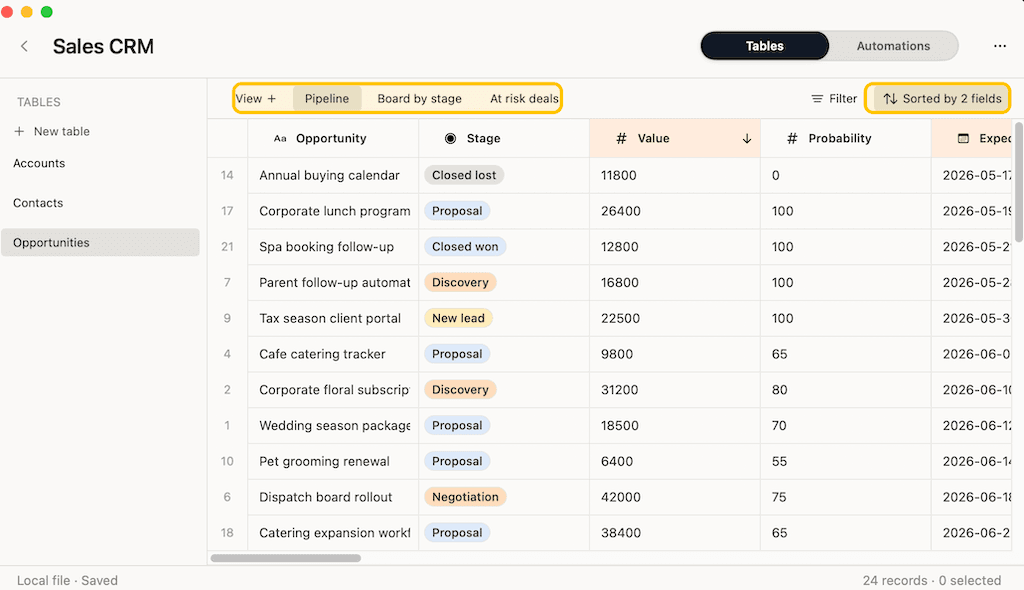
Keep view names action-oriented
Name views after jobs, not vague categories.
| Weak view name | Better view name | Why it works |
|---|---|---|
| Important | Follow up today | Tells you what action to take |
| Problems | Blocked | Maps to a clear status |
| New | New intros without first touch | Shows the missing step |
| Inventory review | Reorder needed | Makes the decision visible |
| Project check | Due this week | Fits a weekly review habit |
If a view name does not suggest a habit, meeting, cleanup pass, or decision, it may be a saved filter nobody will use.
Useful saved views by workflow
Saved views are most useful when one source table needs several repeatable angles.
CRM views
Use CRM views to turn relationship data into a follow-up habit.
| View | Filter | Sort | Use it for |
|---|---|---|---|
| Follow up today | Follow-up date is today or earlier | Follow-up date ascending | Daily relationship work |
| Warm leads | Status is Warm or Proposal | Last contact descending | Active opportunity review |
| Quiet contacts | Priority is high and last contact is old | Last contact ascending | Preventing stale relationships |
| No next action | Next action is empty | Last contact descending | Cleanup before weekly review |
For the finished CRM setup, read Personal CRM for Mac. For the conversion steps, read Turn Spreadsheet Into CRM on Mac.
Project views
Use project views to make risk and ownership visible.
| View | Filter | Sort | Use it for |
|---|---|---|---|
| Due this week | Due date is within 7 days and status is not Done | Due date ascending | Weekly planning |
| Blocked | Status is Blocked or blocker is not empty | Review date ascending | Unblocking work |
| Waiting on client | Waiting on is not empty | Last update ascending | Handoff follow-up |
| No owner | Owner is empty and status is not Done | Due date ascending | Fixing tracker gaps |
For the full workflow, read Turn Spreadsheet Into Project Tracker on Mac.
Inventory views
Use inventory views when the same product table needs reorder, vendor, and location angles.
| View | Filter | Sort | Use it for |
|---|---|---|---|
| Low stock | Current stock is below reorder point | Current stock ascending | Reorder planning |
| Reorder needed | Reorder needed is true | Vendor, then reorder date | Purchase review |
| By vendor | Vendor is not empty | Vendor ascending | Supplier check-ins |
| Discontinued | Status is Discontinued | Last sold descending | Archive and cleanup |
For a finished product/vendor/location setup, read Inventory Tracker for Mac.
Common mistakes with saved views
The first mistake is creating a view for every possible filter. Views should be durable enough to revisit. Use temporary filters for one-off exploration.
The second mistake is hiding source fields too aggressively. A focused view can hide clutter, but it should still show enough context for safe editing.
The third mistake is treating views as permissions. A saved view can make work easier to review. It is not a security boundary unless the tool explicitly supports view-level access control.
The fourth mistake is editing from a narrow view without understanding why rows disappear. If a row no longer matches the view filter after you edit it, it may leave the view immediately. Airtable's view guide notes that view customizations such as filtering, grouping, sorting, and field visibility apply to the current view: Airtable custom views. That behavior is useful, but it can surprise people who expect a copied tab.
How Macrows fits
Macrows fits when copied spreadsheet tabs are trying to become working queues. It is a private spreadsheet database for Mac, so a local project can keep one source table and add saved views for the real review habits around that table.
Use Macrows when you want to:
- Keep a familiar grid instead of moving every workflow into a browser workspace.
- Save views for follow-ups, blocked work, low stock, stale records, and missing fields.
- Combine saved views with typed fields, linked records, formulas, buttons, and row actions.
- Keep local projects free while deciding which workflows should be shared later. The Macrows pricing page says local use stays free, and the roadmap lists tables with field types, saved views, linked records, buttons, and basic automations as available now.
For the broader category, read Spreadsheet Database for Mac. For relationships between tables, read Linked Records in Spreadsheets.
When Macrows is not the right fit
Use Google Sheets when the main job is shared spreadsheet collaboration and everyone already works in Google Workspace. Google Sheets filter views are useful when people need named filters or temporary views on shared spreadsheets: Google Sheets filter views.
Use Airtable when the workflow belongs in a shared cloud base with many view types, forms, interfaces, permissions, and team collaboration. Airtable supports grid, form, calendar, gallery, kanban, timeline, list, and Gantt views in a table: Airtable views overview.
Use Excel when analysis, modeling, PivotTables, formulas, or existing Microsoft 365 workbooks are the main job. Do not move to a spreadsheet database just because a workbook has filters. Move when the sheet needs durable records, field rules, linked data, saved working views, and row actions.
Use separate sheets in any tool when the data is actually different. Saved views are for one table seen several ways. They are not a replacement for a real Companies table, Vendors table, Tasks table, or Stock movements table.
Saved view checklist
Before you create a new view, answer these questions.
- Is this the same source data, or a different record type?
- Does this view drive a recurring action, meeting, cleanup pass, or review habit?
- Which field decides whether a row belongs in the view?
- Which sort order makes the next action obvious?
- Which fields can be hidden without making edits unsafe?
- What should happen when a row leaves the view after editing?
- Would a temporary filter be enough?
If the answers are unclear, do not create the view yet. Clean the source fields first.
FAQ
What are spreadsheet saved views?
Spreadsheet saved views are named filters, sorts, and layouts for the same source data. They let you revisit a working angle without copying rows into another tab.
Are saved views better than separate sheets?
Saved views are better when the same records need different review angles. Separate sheets are better when the rows represent different record types with different fields.
Can Google Sheets save views?
Yes. Google Sheets supports filter views, which Google describes as saved named filters you can switch between. Use them when a shared spreadsheet needs repeatable filters without changing the underlying values.
Can Excel save filtered views?
Excel has Custom Views for saving display and print settings, including filter settings. Check the current workbook setup first because Microsoft says Custom Views are unavailable when any worksheet in the workbook contains an Excel table.
How many saved views should a spreadsheet database have?
Use as many as the workflow can maintain, but start small. Three to five views per important table is usually easier to trust than a long list of filters nobody reviews.
How does Macrows use saved views?
Macrows uses saved views to keep one table usable from several working angles. A CRM can show follow-ups and warm leads; a project tracker can show blocked, overdue, and due-this-week work; an inventory table can show low-stock or reorder-needed records.